
The Connection, Inc Blog
The Connection, Inc has been serving the New Jersey area since 1992, providing IT Support such as technical helpdesk support, computer support and consulting to small and medium-sized businesses.


There are countless web pages offering a wealth of resources, utilities, and references that can greatly assist businesses of all kinds in achieving their goals. What’s even more amazing, these web pages can be turned into applications for simpler, more convenient access, provided you’re using Google Chrome.
Let’s go over how to do so!
0 Comments
Most of us use our internet browser every single day without thinking twice. Open tab, type something, click stuff, maybe panic a little when 42 tabs are open. Your browser can actually do a lot more for you, including saving you time and keeping you organized. This month, we thought we’d give you three browser tips that can seriously help you.

If you feel like you have too many browser tabs open at any given time, then you'll be happy to know that you can sometimes save certain browser tabs as a standalone application on your device. This will give them their own icon and make accessing them much easier than constantly navigating to them through your web browser.
When someone mentions cookies, people start paying attention. Chocolate chip, oatmeal raisin, snickerdoodles… Browser? While Browser cookies aren’t the most scrumptious, they do need some attention. Nowadays, many websites you visit have a popup asking if they want to allow cookies for that site and knowing what you are agreeing to is important. In today’s blog, we will describe what cookies are, how they work, and why they can sometimes be better than cookies with chocolate chips.
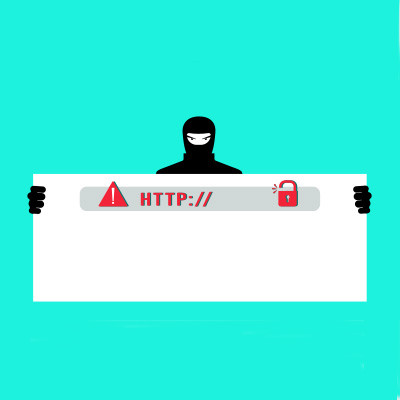
It’s important to keep the software on your computer updated. If your operating system or web browser or some other important application is out of date, it could lead to things not working properly while also leaving you susceptible to threats. However, hackers are disguising malware to look like important web browser updates.

Since its domain was first registered on September 15, 1997, Google has exploded from a relatively simple search engine to the massive assortment of platforms and services that fall under the Alphabet umbrella. That being said, most people tend to think of very specific aspects of Google’s Search function… like the amusing Easter Eggs that the platform has become somewhat famous for.

It probably isn’t hard to think of a time when you’ve stumbled across something that would be useful for work while you were doing some personal browsing. What if I told you there was an easy way to send a website to your browser to view later? Thanks to Google Chrome, this is the case.
It’s easy to open up far more tabs on your web browser than you need, especially when so many tools are cloud-based. If you find yourself in need of a quick way to close all other tabs besides a handful or so, we’ve got just the tip for you. You can close all open tabs to the right of your preferred window, or you can close all tabs outright.
How often does this scenario happen to you? You’re going about your workday and are being quite productive, when all of a sudden you close the wrong tab in your web browser, putting an end to your productivity. This isn’t crippling downtime or anything, but it’s an inconvenience that we know you can do without. Thankfully, modern web browsers let you reopen closed tabs or windows to get back to where you left off.
Goodbyes are always painful, but we suspect that this one for Microsoft’s Internet Explorer will be more on the bittersweet side of things. Long a staple in the web browsing world, Internet Explorer has largely been removed from devices running Windows 10 and Windows 11. Let’s take a moment to discuss the approach Microsoft is using to slowly phase Internet Explorer out of the web browsing space.

When you go to a website you have never been to before, there is often a splash page that asks if you would like to accept cookies. It doesn’t mean you are getting a care package, it just means that you accept a formal interaction with the website you’re on. Let’s take a look at browser cookies

Bookmarks are an essential part of being productive with your Internet browser, but what happens when you switch to a different one, like Google Chrome? Do you have to manually add all of your bookmarks back to the browser? Nope! Let’s go over how you can import your bookmarks directly to Google Chrome and save some time.
Privacy is a sensitive subject nowadays, especially online. Regardless of the browser you have elected to use, properly using it will have a large impact. Let’s review a few ways that you and your team can help secure your business and its resources and go over these settings.
Data and cybersecurity is hard enough without vulnerabilities coming from one of your most utilized applications. That’s the scenario after a bug was found in some of today’s most popular Internet browsers putting billions of people’s data security at risk. Let’s take a brief look at the vulnerability and how you can ensure that it won’t be a problem for you or your company.

Have you upgraded your business’s workstations to Windows 10 yet? If not, you should ask yourself why you haven’t done so. However, if you have upgraded, you’re one of the 25.3 percent of people using Windows 10. Windows 10 seems to be a great hit among end-users, but Microsoft’s new browser, Edge, isn’t so fortunate.
Using data collected by Net Applications, StatCounter Global Stats, and the United States Government’s Digital Analytics Program, ZDNet put together some OS usage statistics for all Windows PCs. Since November 2015, Windows 10’s usage has gone from 12.8 percent to 25.3 percent (nearly doubling in popularity). Other significant trends include the usage of Windows XP/Vista, which has significantly decreased, as well as Windows 7 and 8.x decreasing slightly in usage.
You would think that all of this growth for Windows 10 would mean significant growth for Microsoft Edge, too. Unfortunately, even the most generous of statistics only provide Edge with a usage of 5 percent, while the lower end places it at around 2.5 percent.
We want to take this opportunity to remind you that your business shouldn’t be updating your technology at the last minute, especially if your current operating system is set to expire shortly. If you’re currently using an unsupported operating system, you need to make the switch to a better, more recent software as soon as possible, as you could be putting not just your own workstation at risk, but your entire infrastructure as well. You should never put your business’s critical assets in harm’s way if you can avoid it.
If your business hasn’t considered upgrading to Windows 10 yet, why is this the case? Is it due to legacy applications that your business needs to keep operations moving forward, or because your current computer is ready to bite the dust? Either way, you need to take a full assessment of your network and prepare an audit for what needs to be done before you can move to Windows 10. You need to know if Windows 10 will make a significant change in the way that your business functions.
It’s also worth mentioning that, if your business wants to take advantage of Windows 10, you should try to use the free upgrade from Microsoft while you still can. The offer lasts until July 29th, 2016, so there’s no better time than now to upgrade.
The Connection understands the importance of making an educated decision about your IT infrastructure. We can help you make the upgrade to Windows 10 with the least amount of trouble possible. By outsourcing the management and maintenance of your infrastructure to The Connection, we can consult you on how best to make major changes to your business’s technology, as well as how to make your business’s technology dreams become a reality. To learn more, give us a call at (732) 291-5938.
Everyone has accidentally closed an important web browser tab before they were finished with it. What can you really do about it, though? You might expect that you have to search for the page again, but there’s a much easier way to do it. In your Google Chrome browser on a PC or smartphone, you can reopen closed tabs relatively easily.

Whenever you download a file from the Internet, the file will, by default, go to an aptly-titled folder in Windows called Downloads. Unless you change the default settings, your files will always be saved here. But what if you want to make it so that your downloads go somewhere else? You can accomplish this pretty easily. We’ll walk you through how to do it for some of the most popular browsers, including Google Chrome, Microsoft Edge, and Mozilla Firefox.
You might be wondering why you would even want to make this change to your PC in the first place. After all, there must be a reason why it defaults to such a place. Let’s use the example of downloading a large file, like a video. Maybe you don’t want that file to take up so much space on your hard drive. If you have a connected hard drive or a network drive, you can tell the file to download directly to it by customizing where your downloads go. This saves you the pain of moving or copying files to the location after the fact.
For Google Chrome
Open up your Chrome browser and click on the three-dot menu that’s found in the top-right corner of the screen. You’ll then want to click on Settings. Scroll all the way down to the bottom of the settings menu to find the Advanced option. If you look far enough, you’ll see the Downloads heading. You can then change the default location for any download that you choose to start. Just make sure that you also toggle the option to ask you for the location before you start a download so that you can change the location as needed.
For Microsoft Edge
Just like Google Chrome, you’ll have to navigate through the three-dot menu that hides Edge’s Settings. This will open up a new menu that appears on the right side of the screen. Next, go to View Advanced Settings. You’ll eventually see the Downloads section, which will give you the same settings as Chrome.
For Firefox
Even for Firefox, the steps are largely the same. Open the three-line menu that is in the top-right corner and select Preferences. Once you’ve done so, make your way to the General tab. Finally, select the Choose button next to the Save files to. You’ll be given the same options that are available for the other browsers.
For more tips and tricks, subscribe to The Connection’s blog.

If you use the Internet every single day, you’ll start to realize that you can use it more effectively for achieving your goals. In cases like this, it’s important to look at ways you can improve your overall use of the Internet, as it’s the key way you access important information, applications, and contacts. Here are some day-to-day tips that you can use to help improve your mastery of the Internet.
Take Complete Advantage of Tabbed Browsing
Let’s say that you find a particularly interesting article that you don’t want to navigate away from. Then, however, you find one that catches your interest, and you want to save it for later. You can simply right-click the link and open it in a new tab. If you want to take your tab browsing to the next level, try clicking on it while holding down the Ctrl key. The exact same thing will happen, but without you having to right-click the link.
Leave Out the Beginning of the URL
If you can’t remember the beginning of a URL, don’t sweat it. As long as it’s HTTP or HTTPS, you probably don’t need to enter it to find the right site. The URL will be identified by the web browser automatically. However, you will want to pay attention to the URL if you’re navigating to an online shop or a site where sensitive information is exchanged. You never want to enter information into a site that isn’t using encryption.
Navigate Through Forms Quickly
You can navigate through forms on web pages quickly and easily by hitting the Tab key. This will move you through field-by-field, which makes them much easier to fill out than clicking on every single field as you go through it. If you want to go back to a previous field, you can use the keyboard shortcut Shift + Tab.
Use Browser Shortcuts
Some of the same keyboard shortcuts you would use in word processors will also work in a web browser, like copy, cut, and paste. There are others, however, that are specific to a web browser, including the following:
- Use F5 or Ctrl+R to refresh the web page.
- Use Ctrl+F to open the Find function, which will let you search a web page for specific text.
- Use Ctrl+B to open the Bookmarks function.
- Press Ctrl and the plus or minus keys to make the text bigger or smaller.
What are some of your favorite web browsing tips and tricks? Be sure to let us know in the comments.

Browser cookies might not sound delicious, but they are a particularly important part of your browser’s technology. Do you actually know what they do, though? Today’s tech term will explain just what these cookies are, as well as the purpose they serve for your organization.

Everyone knows some keyboard shortcuts. The normal ones that allow you to copy, cut, paste, lock your computer, select all, and more. Today, we thought we would tell you about some browser-based shortcuts that can definitely save you time and effort.
News & Updates
The Connection, Inc. Celebrates 32 Years as a Trusted Technology Provider! Since our founding in 1992, technology and the way we operate and do business has changed a lot. Companies that have adapted and aligned themselves with ...
Understanding IT
Get the Knowledge You Need to Make IT Decisions
Technology is constantly evolving, and keeping up can feel overwhelming. Whether you want to understand cybersecurity threats, explore automation, or learn how regulations like PCI DSS impact your business, we’ve made it easy to access clear, straightforward insights on key IT topics.
Contact Us
Learn more about what The Connection can do for your business.
The Connection
51 Village CT
Hazlet, New Jersey 07730